Amazon backend keywords example: how to fill the field
A real Amazon backend keywords example from Amazon's help pages, a worked example built step by step, and the rules that decide whether your search terms are used or ignored.
Ashish · 7 min read
Backend keywords are the one part of your Amazon listing shoppers never see. That makes them easy to get wrong. Nobody reads them, so they fill up with commas, repeated words and phrases copied from the title, and some go over the limit without anyone noticing.
This guide starts with an Amazon backend keywords example taken from Amazon's own help pages, then builds one from scratch for a made-up product. Every rule here comes from Amazon's search terms guidance and its keyword attributes page.
What are backend keywords on Amazon?
Backend keywords are the words you enter in the Generic keyword field, also called search terms. Amazon describes them as keywords its search engine uses for lexical matching between a product and a search. Customers don't see them on the product page.
Their job is to cover the words a buyer might search that don't fit naturally anywhere else. Amazon's example is headphones: someone might search "earphones" or "earbuds", so those words belong in the field even if your title says "headphones".
The field used to be five separate boxes. It's now one.
An Amazon backend keywords example, from Amazon
This is the example on Amazon's search terms page, for a cutting board:
cutting chopping board butcher block bamboo wood wooden large hybrid polypropylene food grade plastic non slip kitchen dual sided surface natural bpa stain scar resistant eco friendly drip groove
What it does right:
- Synonyms side by side. "Cutting", "chopping", "board" and "butcher block" cover the different ways people name the same thing.
- Materials and features. "Bamboo", "polypropylene", "food grade", "non slip", "drip groove".
- All lowercase, separated by spaces. No commas or semicolons.
- Each word once. "Board" appears a single time, and search can combine it with the other words.
- No brand name, and no filler words such as "a", "the", "for" or "with".
It's 195 characters with spaces, and Amazon doesn't count spaces, so it sits well under the limit.
Amazon backend keywords limit: under 250 bytes
Amazon's help pages give the limit as less than 250 bytes. The keyword attributes page adds the part that matters most: if the field goes over the limit, the attribute is completely ignored by Amazon Search. Not trimmed, ignored.
How the bytes are counted:
| What you type | Bytes |
|---|---|
| Letters a to z | 1 each |
| Numbers 0 to 9 | 1 each |
| Accented letters such as ä or ö | 2 or more each |
| Spaces and punctuation | Not counted |
If your terms are plain English letters and numbers, the character count without spaces is the byte count. If you sell in a store where accented letters are common, count more carefully. In Seller Central, the field stops accepting input once you reach the limit. If you edit in a spreadsheet, count before you upload.
The rules for backend keywords
From Amazon's search terms page, in short:
- Use synonyms and spelling variations, but not common misspellings.
- Include abbreviations buyers use.
- Write in lowercase and separate words with spaces. Punctuation isn't needed.
- Don't repeat words. Once is enough.
- Skip short filler words: a, an, and, by, for, of, the, with.
- Use the singular or the plural, not both.
And what's prohibited:
- Brand names, your own and other brands.
- ASINs.
- Temporary words, such as "new", "on sale" or "limited time".
- Subjective words, such as "best", "cheap", "amazing" or "trending".
- Profanity and offensive terms.
Amazon says search terms that break these rules may lead to the ASIN being suppressed from search, so a competitor's brand name is a risk, not a shortcut.
Backend keywords work best once the visible listing is done. YelloShelf writes your Amazon title, bullet points and description from your product photo, so you can see which words are already covered before you fill this field. See how it works.
A worked example, step by step
This is a made-up product. "Ironbark" isn't a real brand.
The listing so far:
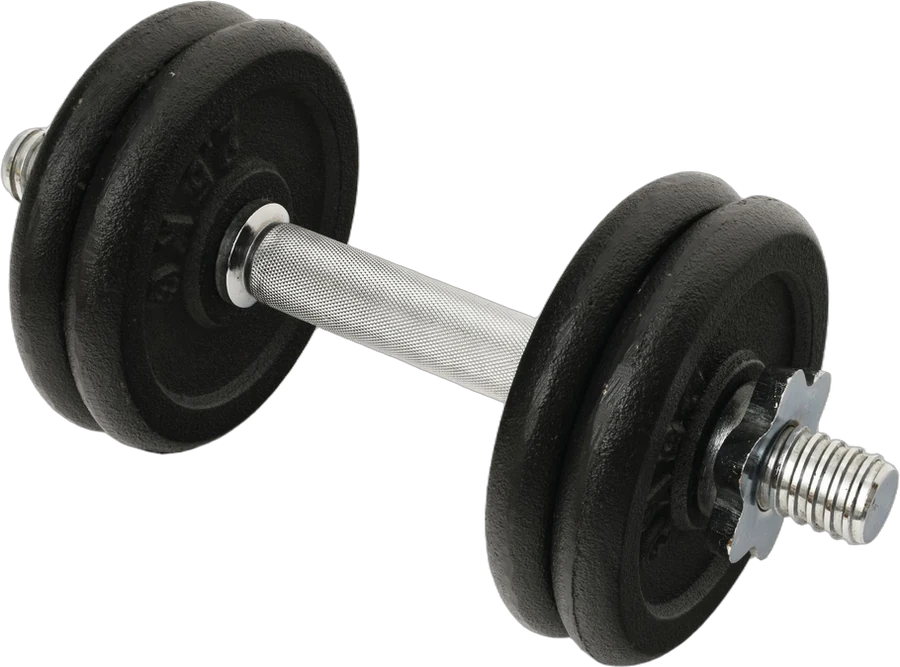
- Title: Ironbark Neoprene Dumbbells, 2 kg Pair, Sage Green
- Item Highlights: Non-slip neoprene coating, hexagon ends, for home workouts and barre
Step 1: list every word a buyer might use. Don't filter yet.
dumbbells, hand weights, hand weight, best dumbbells for women, new, a competitor's brand, free weights, workout, exercise, fitness, strength training, toning, physio, rehab, beginner, arm, shoulder, upper body, walking, pilates, aerobics, sage, neoprene, 2kg
Step 2: remove what's prohibited. "Best", "new" and the competitor's brand go.
Step 3: remove what's already on the page. "Dumbbells", "neoprene", "sage", "workout" and "pair" are in the title or highlights. Amazon's advice is to avoid repetition, and these words are already searchable, so the space is better used for new ones. This step is quicker when the title and bullets are written first, whether by you or by YelloShelf.
Step 4: pick singular or plural, and remove duplicates. "Hand weight" stays, "hand weights" goes. "Free weights" becomes "free", since "weight" is already there.
Step 5: format it. Lowercase, spaces, no punctuation.
The finished field:
hand weight free women men exercise fitness strength training toning physio rehab beginner arm shoulder upper body walking aerobics pilates 2kg
That's 123 bytes without spaces. There's room to add more if you find good terms later, and nothing that could get the field ignored. "2kg" is there as a spelling variation of "2 kg" in the title.
How to add or change backend keywords
- One listing: go to Manage Products, choose Edit for the listing, open the Product details tab and find the Generic keyword field.
- Many listings: download the Category Listing report, edit the search terms in the inventory file template, and upload the file.
Since December 2023, Amazon has required the field for a set of product types, including board games, blankets, balloons, bedding sets and party favours. If your listing form marks it as required, fill it before you submit.
Why some backend keywords don't get used
Even a clean field isn't a guarantee. Amazon's search terms page says relevance is determined automatically and it may not use every term you enter. Common reasons a term doesn't help:
- The field is over 250 bytes, so all of it is ignored.
- The term is prohibited, so Amazon removes it.
- The term isn't relevant to what the product is.
If the visible listing is thin, more backend terms rarely make up for it. A clear title and bullets, written yourself or drafted by YelloShelf, give search more to work with.
If a listing isn't showing for searches you expect, the cause is often somewhere other than this field. Our guide to why your Amazon product isn't showing up goes through the checks in order.
Where to find the words
Backend keywords come from the same research as the rest of your listing. Our guide to finding keywords for an Amazon listing for free covers the search bar, top listings, reviews and Amazon's own tools. Decide where each word goes, then put the leftovers here.
The main phrase belongs in the title. See our Amazon product title guidelines for the 75-character rule and Item Highlights. Features belong in the bullets, covered in our Amazon bullet points examples. If you start with a YelloShelf draft for those parts, read it through once before writing backend terms, so you don't repeat what it already says.
Quick checklist
- Under 250 bytes, counted without spaces.
- Lowercase, separated by spaces, no punctuation.
- Synonyms, spelling variations and abbreviations, but no misspellings.
- No brand names, ASINs, temporary or subjective words.
- No word repeated, and nothing that's already in the title.
- Singular or plural, not both.
Write the rest of your Amazon listing with YelloShelf
Backend terms are the last step. The title, bullets and description come first, and that's where YelloShelf can help. Upload a product photo and it writes an Amazon title, bullet points and a description, with a suggested price, based on what's already selling. It also makes listing images sized for Amazon and the other marketplaces it supports. You review it and add everything to Seller Central yourself, since it doesn't publish anywhere.
It makes social posts too, with captions and hashtags for Instagram, TikTok, Pinterest, Facebook and X.
No subscription or free trial. Pay as you go credit packs from $10, with a 7-day money-back guarantee on your first purchase.
Made by the team behind YelloShelf
Write the rest of your Amazon listing from a photo
Upload a product photo and get an Amazon title, bullet points, a description and a suggested price, based on what's already selling, plus listing images sized for Amazon.
- Pay as you go credit packs from $10
- No subscription
- 7-day money-back guarantee on your first purchase
FAQ
What is an example of Amazon backend keywords?
Amazon's own example, for a cutting board, is a run of lowercase words separated by spaces: synonyms like chopping board and butcher block, materials like bamboo and polypropylene, and features like non slip and drip groove. There are no brand names, no commas and no word used twice.
How many bytes can Amazon backend keywords be?
Amazon's help pages say the Generic keyword field must be less than 250 bytes. If it goes over the limit, Amazon says the whole field is ignored by search, not just the extra words.
Do spaces count toward the backend keyword limit?
Amazon's search terms page says spaces and punctuation, such as semicolons, colons and hyphens, aren't counted toward the length limit. Letters a to z and numbers 0 to 9 are one byte each, and accented letters such as ä take two or more.
Can I put competitor brand names in backend keywords?
No. Amazon prohibits brand names in search terms, including your own and other brands. Search terms that break the rules may lead to the ASIN being suppressed from search.
Why aren't my backend keywords working?
Check three things. The field may be over 250 bytes, in which case Amazon ignores all of it. It may contain prohibited terms, which Amazon removes. And Amazon says it may not use every term you enter, because relevance is decided automatically.