How to remove lint from clothes (and from your photos)
Phone cameras pick up every speck of fluff, especially on dark clothes. Here's how to get lint off before the photo, how to clean it up afterwards, and the difference between lint and pilling.
Ashish · 6 min read
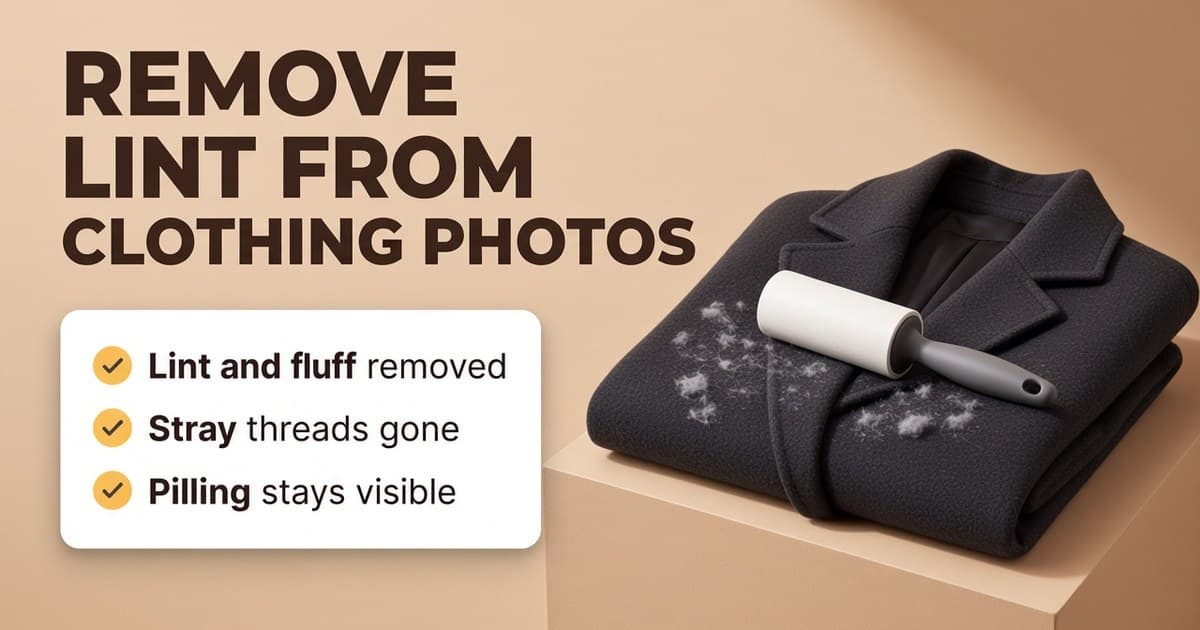
The black wool coat looked spotless on the hanger. In the photo, zoomed in on a buyer's phone, it's covered in white fluff, a couple of cat hairs and a stray thread hanging off the cuff. It looks second-rate, and it isn't.
Camera phones are sharp, and they pick up things you don't notice in the room. Lint is one of the easiest problems to fix. This guide covers getting it off the item, getting it out of a photo you've already taken, and the line between lint and wear.
Get it off the item first
A lint roller. Roll in one direction, with light pressure, and peel off a fresh sheet often. Go over the shoulders, the front, the back and the sleeves, then check again by the window, where the light shows what you missed.
Packing tape. No roller? Wrap wide tape around your hand, sticky side out, and pat the fabric.
A damp rubber glove. Rub it over the fabric in one direction. It's very good on pet hair, and it balls the hair up so you can pick it off.
A clothes brush. Better than tape on wool coats and delicate knits, which sticky rollers can pull at.
Snip stray threads. Cut loose threads close to the fabric with small scissors. Don't pull them, because that can open a seam.
Tackle static. Fluff clings to synthetic fabric because of static. A quick steam first, or a light mist of water, makes it easier to lift.
Stop it coming back
- Lint roll right before you shoot, not the night before.
- Keep pets out of the room while you photograph.
- Wipe down the surface you use for flat lays. Dust on the background shows up too.
- Wipe your phone lens. A smudged lens can make a clean item look hazy.
- Photograph dark items in one session, with the roller to hand.
Lint or pilling? Know the difference
This matters for honest listings.
Lint, fluff, dust, hair and loose threads are lying on top of the fabric. They're not part of the item, and removing them, by hand or in the photo, is just tidying up.
Pilling (the little bobbles on worn knitwear), fading, worn patches, snags, stains and holes are part of the item's condition. Buyers need to see them. You can remove pilling from the real item with a fabric shaver, and then the photo honestly shows a de-pilled jumper. But don't edit pilling out of a photo while it's still on the item. That's hiding the condition, and it's exactly what "not as described" returns are made of.
Every platform asks for photos that show the real item. Depop asks for photos of any faults (Depop help: selling on Depop), eBay doesn't allow photos that don't accurately represent the item (eBay picture policy), and Vinted asks you to show defects in the photos (Vinted help: what photos to upload).
Cleaning lint out of a photo you've already taken
Sometimes you only spot the fluff later, after the item is packed away.
A few specks: your phone's built-in object eraser or "clean up" tool can usually remove a speck or a hair. Zoom in afterwards, because on fabric it can leave a smudge.
In an editor: the spot healing brush in Photoshop, or the same kind of tool in free editors like Photopea and GIMP, paints over specks using the fabric next to them. It works well, but on a black coat covered in fluff it means clicking on dozens of tiny spots per photo.
Check before you upload: zoom in on the edited photo and compare it with the original. The weave and texture should look the same, and any real wear should still be there.
Vinted is the exception. Its Catalog Rules say photos must "represent the item as it is - no image editing is allowed" (Vinted Catalog Rules), so on Vinted, roll the item and reshoot.
A worked example
This is a made-up example. "Halden" isn't a real brand.
A seller is listing a Halden charcoal merino jumper on eBay and Depop.
- 1Steamed lightly to settle the static, then lint rolled on the front, back and sleeves.
- 2Photographed flat on a wiped-down wooden floor by the window.
- 3On the big screen, there's still a white speck on the chest and a hair on one sleeve. Both are cleaned out of the photo with a healing tool.
- 4The jumper has light pilling under the arms. That stays in the photos, gets its own close-up, and the description says "light pilling under the arms, see photo 7".
The photos now look cared for and show exactly what the buyer will get.
For the full setup, see our guides to photographing clothes to sell and the best lighting for clothing photos.
Quick checklist
- Lint roll right before the photo, then check by the window.
- Rubber glove for pet hair, a clothes brush for wool.
- Snip stray threads, don't pull them.
- Wipe the background and the phone lens.
- Remove lint in photos if you need to, never pilling, stains or wear.
- Every flaw shown in a close-up and mentioned in the description.
- No edits on Vinted.
Remove lint in photos with YelloShelf Product Studio
Rolling and checking a whole rail of dark clothes takes a while, and cleaning specks out photo by photo takes longer. YelloShelf's Product Studio has a Clean up tool that removes loose lint, dust and stray threads lying on the fabric. It only removes what's lying on top. Stains, holes, fading and pilling stay visible, because buyers need to see the real condition, and that's what keeps your listings honest and your returns low. The print, logo, colour, shape and size stay the same, and you drag a slider to compare each edit with your original before you download it.
Clean up is 55 credits a photo, which is $0.55 on the $10 pack, and you can upload up to 20 photos at a time. Steam (creases) and Light (true colours) work on their own if a photo needs them too. You choose which photos to keep and upload them yourself. On Vinted, roll the item and reshoot instead.
No subscription or free trial. Pay as you go credit packs from $10, with a 7-day money-back guarantee on your first purchase.
Made by the team behind YelloShelf
Clean the fluff out of your clothing photos
Upload up to 20 clothing photos and turn on Clean up. Pilling, stains and wear stay visible, and you compare every edit with your original.
- Pay as you go credit packs from $10
- No subscription
- 7-day money-back guarantee on your first purchase
FAQ
How do I remove lint from clothes before taking photos?
Use a lint roller in one direction with light pressure, then check by a window and go again. Packing tape around your hand works too, a damp rubber glove is good for pet hair, and a clothes brush is gentler on wool.
How do I remove lint from a photo?
For a few specks, use your phone's object eraser or a spot healing brush in an editor like Photoshop, Photopea or GIMP. For lots of photos, a clothing photo tool like Product Studio's Clean up removes loose lint, dust and threads in one go. Zoom in afterwards to check the fabric still looks real.
Is it OK to edit lint out of listing photos?
On eBay, Depop, Poshmark and Etsy, removing loose lint is generally fine, because it isn't part of the item, as long as the photo still accurately shows it. Never remove pilling, stains or wear. Vinted's Catalog Rules say no image editing is allowed.
Why does lint show up so much on dark clothes in photos?
Pale fluff stands out against dark fabric, and phone cameras are sharp enough to pick up specks you don't notice in the room. Lint roll dark items right before you shoot them.
Is pilling the same as lint?
No. Lint is loose fluff lying on the fabric. Pilling is small bobbles of fibre attached to the fabric, a sign of wear. Buyers need to see pilling, so show it in the photos and mention it in the description, or remove it from the item with a fabric shaver.